Office of the Registrar
Registration Information

Registration Guide
IMPORTANT INFORMATION: Registration at ESF is a two-step process - for the first step, you are required to complete advising with your advisor where you decide which courses you will register for and then take the steps described in the information below to have your advising hold removed. For step two, you must fill your shopping cart in MySlice, locate your enrollment appointment day/time in MySlice, and then be ready to complete the registration process at that day and time.
SUNY ESF students register for courses in MySlice. While you will be able to view your course schedule in Banner as well, MySlice is the most accurate. Remember, the registration process at ESF requires proactivity on your part, including developing an understanding of ESF's requirements, seeking out help from your advisor or the Registrar’s Office to plan your class schedule, being flexible about course and section options, and knowing where and how to seek permission for closed and restricted courses - this guide should help position you for a successful registration experience.
Advising Holds - an Advising Hold will be placed on your record prior to the start of the registration period. You are required to meet with your advisor for advising to discuss your class choices for the upcoming semester.
After you have met with your advisor and have decided on your courses, the Registrar’s Office will need to be notified so that your Advising Hold can be removed.
Your Advising Hold can be removed in one of two ways:
- Your advisor can email [email protected], and put notes in your Degreeworks audit, to let us know that you have been advised.
OR
- A registration form provided to [email protected] or brought to our office. The form must be signed by your advisor and complete.
Once the Registrar’s Office receives notification either via email or registration form, the Registrar’s Office will remove your hold.
Registration Dates and Deadlines: You can view registration dates and deadlines, such as the last day to add, last day to drop, and last day to withdraw from a course on the Academic Calendar: SUNY ESF Academic Calendar
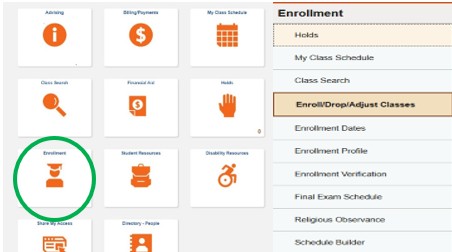
Add Dates: Students have the ability to register in MySlice starting at the assigned enrollment appointment time. Enrollment appointment times differ, so it is important to check MySlice to see when your specific enrollment appointment time is. Your enrollment appointment can be found on the Enrollment tile in MySlice under “Enrollment Dates.”
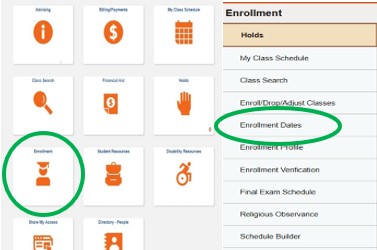
Students will be able to add courses themselves in MySlice for the entirety of their specific enrollment appointment time. After the enrollment appointment ends, you will be unable to add courses yourself in MySlice and will need to complete a Late Add Petition to enroll in a course after the add period has ended. Additionally, there is also a deadline to add a course without a late add fee - this date can also be found on the Academic Calendar.
Drop Dates: Students will be able to drop courses themselves in MySlice for the entirety of their specific enrollment appointment time. After the MySlice enrollment appointment ends, you will be unable to drop courses yourself in MySlice, but can still drop the course without withdrawing until the Academic Drop Deadline on the Academic Calendar. To drop a course after the enrollment appointment time ends but before the withdrawal period begins, you will need to either:
- Email [email protected] with your advisor’s approval and ask the Registrar’s Office to drop you from the course, or
- Complete a registration form, have it signed by your advisor, and submit to the Registrar’s Office. As long as the MySlice enrollment period has ended, the Registrar’s Office will manually drop you from the course.
Withdrawal Dates: After the Drop period ends, the Withdrawal period begins. In order to withdraw from a course, you will need to complete a Course Withdrawal form and submit it to the Registrar’s Office. The Registrar’s Office will withdraw you from the course. You will receive a W on your transcript for the course, but the W does not impact your GPA. The last day to withdraw can be found on the Academic Calendar.
MySlice Registration How-Tos
Searching for Classes and Adding to the Shopping Cart
- Log into MySlice: MySlice
- Navigate to the Enrollment tile. Always use the Enroll/Drop/Adjust Classes section when searching for classes or making schedule changes, as you will not be able to add/drop/swap courses if you are not in the Enrollment area of MySlice.
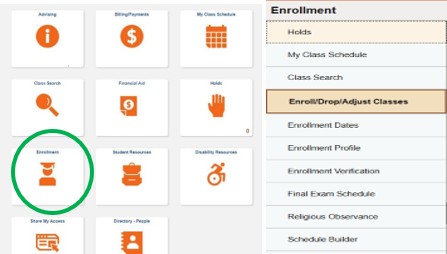
- In the Enroll/Drop/Adjust Classes section, you will be able to perform the following
actions:
- To add courses to your Shopping Cart/Register – Navigate to the Enrollment Tile > Enroll/Drop/Adjust Classes > Enroll tab > Add
- To drop courses – Navigate to the Enrollment Tile > Enroll/Drop/Adjust Classes > Enroll tab > Drop
- To swap courses – Navigate to the Enrollment Tile > Enroll/Drop/Adjust Classes > Enroll tab > Swap (use the SWAP action when you are making schedule changes that will drop one course and add another. Using this feature will allow you to remain enrolled in the current course, just in case the course you are trying to swap into is closed).
- Enter the 5-digit class number (if you know it) or Search for the class using the Class Search function.
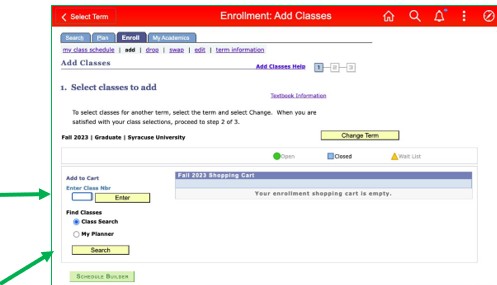
Using Class Search
How to search for a class to add to your shopping cart:
- Use the SUNY ESF prefixes below (any other courses that show up in MySlice with prefixes that aren’t listed below are Syracuse University courses)

- Enter the prefix in the Course Subject Code field (EX. EFB) and the 3-digit course number (EX. 101) in the Course Number field.
- If the “Show Open Classes Only” box is checked, courses that are closed/full will not show up in your search. If you uncheck that box, all courses will show that are being offered.
- Once you have searched and found the section you want to add, Click Select. That course will now be in your shopping cart.
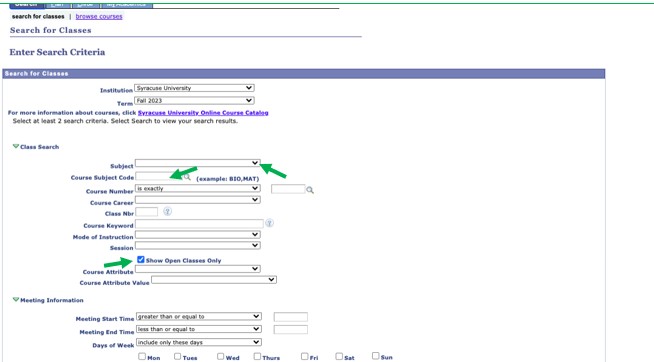
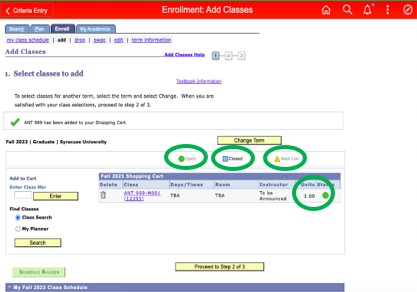
- After you have found a course that fits into your schedule, click Select. At this point, you can check the details of class. Review the class you’ve selected, and then click Next. Click next again. That course is now in your Shopping Cart.
- IMPORTANT TIP: one or more of the courses that you are trying to register for may be full/closed by the time you attempt to enroll, and this is where that proactivity comes in! Having the 5-digit class numbers for other courses that will work for your schedule identified and ready to go will help you quickly and efficiently restart the enrollment process. Identifying one or two more courses at this point in the process should ease the stress of discovering your first choice is full.
Enrolling in a Course that Requires Permission/Entering Permission Numbers
If a course requires a permission number, there are extra steps you need to take before enrollment can occur:
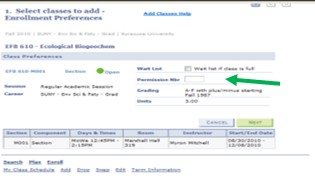
- To enroll in an ESF course that requires a permission number (you may be able find
that information in the course description, but you will also be notified after Step
3 of the registration process if a course is permission only), you will either need
to enter the permission number provided to you by the instructor of the course, or
provide the Registrar’s Office with permission from both the instructor and your advisor
for the Registrar’s Office can enroll you in the course.
- Courses such as research credits or teaching assistant credits can only be registered by the Registrar’s Office. In order to be registered for research credits or teaching assistant credits, you must provide email approval or hardcopy signature permission on a registration form from both the instructor of the course and your advisor to the Registrar’s Office. The email permission from both instructor and advisor should be emailed to [email protected]. If you are providing signatures via a registration form, please email the form with both signatures to [email protected]. As a reminder, you will not be able to register yourself for these types of courses in MySlice.
- Internship courses require the Internship Agreement form to be completed, signed, and submitted to the Registrar’s Office. The Registrar’s Office will register you for these credits. You will not be able to register yourself for an internship course in MySlice or via the registration form.
- Other courses requiring permission will have permission numbers provided to each student by the instructor. You will then enter the permission number in MySlice as shown in the photo above to register yourself.
Registering for Classes
On your enrollment date, which you can also find under the Enrollment tile, you will go back into your shopping cart to finish your enrollment. NOTE: You MUST go back into your shopping cart after your enrollment time starts to fully register for courses.
- Once you have accessed your Shopping Cart and it contains all of the classes you would like to register for, click “Proceed to Step 2 of 3.”
- You MUST click the “Finish Enrolling” button in Step 2 in order to register for the classes in your Shopping Cart.
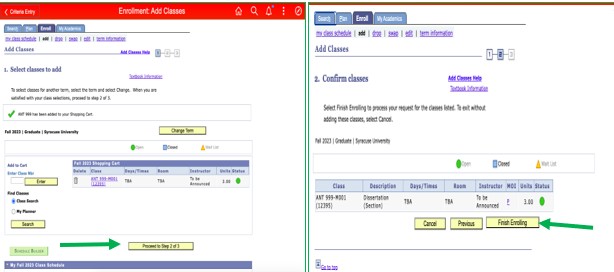
IMPORTANT TIP: one or more of the courses that you are trying to register for may be full/closed by the time you attempt to enroll, and this is where that proactivity comes in! Having the 5-digit class numbers for other courses that will work for your schedule identified and ready to go will help you quickly and efficiently restart the enrollment process. To add other courses to your schedule, navigate back to Step 1 in Enrollment and enter the 5-digit class number for your backup course(s), and then proceed through to Step 3.
MySlice Registration Holds and Errors
What they mean and how to resolve them:
- "Hold on Student’s Record"– This means you have a hold on your account that is preventing Registration.
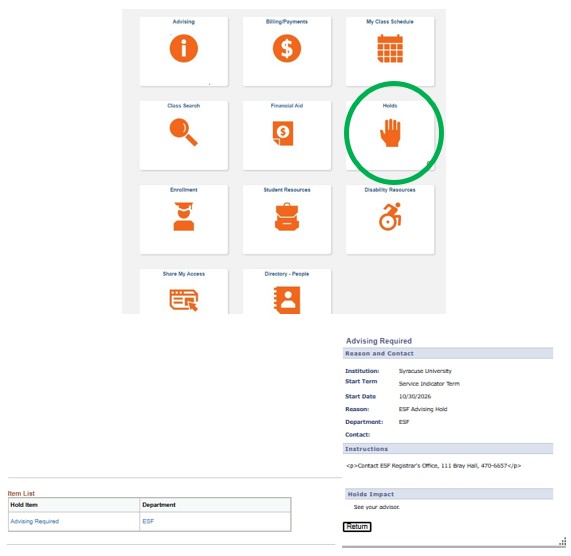
- Navigate to the Holds tile in MySlice to see what holds you have. If you click on each hold, it will tell you who you need to contact.
- Other Common Holds:
- Advising Hold – This means the Registrar’s Office has not received confirmation that you have been advised, so should contact your advisor so that they can inform us that you have been advised. Please note that the Advising Hold is the ONLY hold the Registrar’s Office can remove for you. All other holds will need to be removed by the office/area that placed the hold on your account.
- ESF Bursar Hold – Contact ESF Bursar
- SU Bursar Hold – Contact SU Bursar
- Parking Hold – Contact Parking
- Other Holds – the contact information of the office/area that placed the hold will be listed in the Holds tile on MySlice.
- MySlice Registration Errors – once you have finished enrolling (made it to Step 3 of 3 in MySlice), you should make sure to read through the results as they may be an error message

- "No valid appointment found and open enrollment period has not begun/ended" – you are trying to register before your enrollment time or after registration is closed. Please check your enrollment time by following the instructions on how to view your enrollment appointment time above. If you are registering prior to your appointment time, you will need to go back into MySlice after your appointment time has started. If you are trying to register after your appointment time has ended. You will need further permission to do so. Please contact [email protected].
- "Student not enrolled; class full or restricted/The class is closed or you do not meet class enrollment requirements" – The class is full or you do not meet the enrollment requirements. For ESF courses – email the instructor to ask for permission to join the full course. They will then need to email [email protected] to let us know that the Registrar’s Office can enroll you over the course cap. If there are seats in the room, we will put you into the course. For SU courses – email the SU Department to ask for permission to join the full course. They will assist you in how you can register from there.
- "Time scheduling conflict; student not enrolled in class" – you are trying to register for courses that have a time conflict. For all courses, email both instructors and ask for permission to join two courses that conflict. Forward the email approvals to [email protected]. We will then register you for the one course that you are not registered for. If the courses are one ESF course and one SU course, please register yourself for the SU course. The Registrar’s Office will then register you for the ESF course once we have approval.
- "Maximum term student unit load exceeded" – You are already registered for 19 total credits. Email your advisor and ask for permission to enroll in over 19 credits. Forward that email to [email protected] and let us know what course you need to be added to. We will manually add you to the course that puts you over 19 credits.
- "Permission required" – You need permission from the instructor/department to register for the course. The course requires a permission number or email/signature permission from the instructor/department. For SU courses - a permission number would be provided by the SU Department. You will need to contact the department at SU to receive a permission number. You will then add that permission number into MySlice (instructions above) and register yourself for that course.
For ESF courses that require permission:
- Courses such as research credits or teaching assistant credits can only be registered by the Registrar’s Office. In order to be registered for research credits or teaching assistant credits, you must provide email approval or hardcopy signature permission on a registration form from both the instructor of the course and your advisor to the Registrar’s Office. The email permission from both instructor and advisor should be emailed to [email protected]. If you are providing signatures via a registration form, please email the form with both signatures to [email protected]. As a reminder, you will not be able to register yourself for these types of courses in MySlice.
- Internship courses require the Internship Agreement form to be completed, signed, and submitted to the Registrar’s Office. The Registrar’s Office will register you for these credits. You will not be able to register yourself for an internship course in MySlice or via the registration form.
- Other courses requiring permission will have permission numbers provided to each student by the instructor. You will then enter the permission number in MySlice as shown in the photo above to register yourself.
Having Trouble with MySlice?
MySlice is supported by the Information Technology and Services (ITS) unit of Syracuse University. If you're having trouble with MySlice, these resources will help:
- Phone Support: (315) 443-2677
- Syracuse University Answers Page
- ITS Walk-In Service Centers
Viewing Your Schedule in MySlice
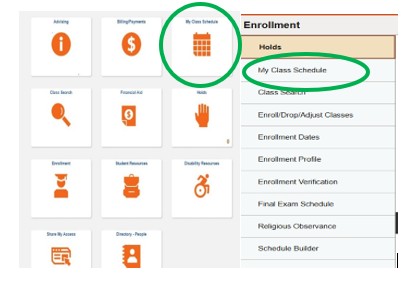
To view your schedule - log into MySlice and select the My Class Schedule tile.
Graduate Students
Graduate student should follow all registration instructions above, noting that while it is not required, it is recommended that all graduate students contact their major professors before registering for classes. Graduate students will not have an advising hold placed on their registration records and will not need to come to the Registrar's Office before registering (unless a course requires permission to enroll).
Visiting Students
- Visiting Students (registration, information, schedules)